An office monitor is judged first and foremost by the adjustments it allows once it is set up on the desk. The screen size and resolution are listed on the packaging, but they say nothing about how the monitor will adapt to the workstation, the height of the person working at it, or the lighting in the room.
French regulations follow the same principle. The provisions of the Labor Code applicable to display screen equipment, in Article R4542-6, do not specify a minimum size, resolution, or panel technology. They focus on adaptability to the workstation: the screen must be easily adjustable in orientation and tilt; its brightness and contrast must be adjustable by the person working at the station; the image must be stable; and the screen must not produce distracting glare.
Three adjustments are key to this adaptability at a workstation: height, tilt, and orientation. These specifications are listed on the technical data sheet; they cannot be guessed, and they do not depend on the screen’s price.
The Three Adjustments That Matter, and What the Law Actually Requires
A screen can display a flawless image yet remain poorly positioned all day long. These three adjustments are what bridge the gap between a screen that’s merely placed there and one that’s properly installed.
Height Adjustment
A height-adjustable stand allows the screen to slide vertically along its column. This adjustment determines the position of your line of sight relative to the top of the screen—and thus the angle of your neck during work hours. Without it, you’ll have to make do with whatever’s lying around on your desk—a stack of books or a makeshift riser—with questionable stability. The range of travel, when specified, is listed in millimeters on the technical specifications sheet.
This is the adjustment least commonly found on entry-level monitors, and the most difficult to add later without replacing the stand.
Tilt
Tilt tilts the panel forward or backward around its horizontal axis. It is expressed in degrees, with a negative value for forward tilt and a positive value for backward tilt, for example from -5 degrees to +15 degrees. There are two primary uses for this feature: positioning the screen perpendicular to the viewer’s line of sight, and angling the screen away from the axis of a ceiling light or window to eliminate glare.
Along with orientation, this is one of the two adjustments explicitly mentioned in the Labor Code.
Lateral Orientation
Lateral orientation, often called swivel, rotates the screen to the left or right on its vertical axis without moving the stand. It is measured in degrees of movement on each side. It is useful whenever a screen needs to be shared temporarily—such as to show a document to a colleague—and at angled workstations where the screen is not directly facing the seat.
This should not be confused with rotation to portrait mode, which tilts the screen a quarter turn to view an entire page or code. The two movements are distinct and are listed separately on a specification sheet.
What the text requires, and what is a matter of usage
This distinction deserves to be clearly established, because it is regularly confused. The regulatory text specifies orientation, tilt, and adjustment of brightness or contrast, and it considers a screen mounted on a separate stand as well as one placed on an adjustable table. It does not mention either the height adjustment of the panel or rotation to portrait mode.
In other words: a tiltable and swiveling screen with adjustable brightness meets the regulatory requirement. Height adjustment is a matter of workplace comfort—a feature widely available in professional-grade models—and portrait mode is a specific use case. The three adjustments listed here are for workplace comfort; they do not cover the legal requirements.
How to Identify an Adjustable Stand Before Purchasing
A technical specification sheet outlines what the stand can do, and it does so in four points. These are the four key details you need to look for before purchasing.
- The height adjustment range, expressed in millimeters or centimeters. A vague statement like “height-adjustable” doesn’t tell you whether the travel is two or twelve centimeters.
- The tilt range, expressed in degrees, usually as a range of negative and positive values.
- Lateral rotation, expressed in degrees on either side of the axis.
- Rotation in portrait mode, explicitly mentioned when available, sometimes referred to as vertical pivot.
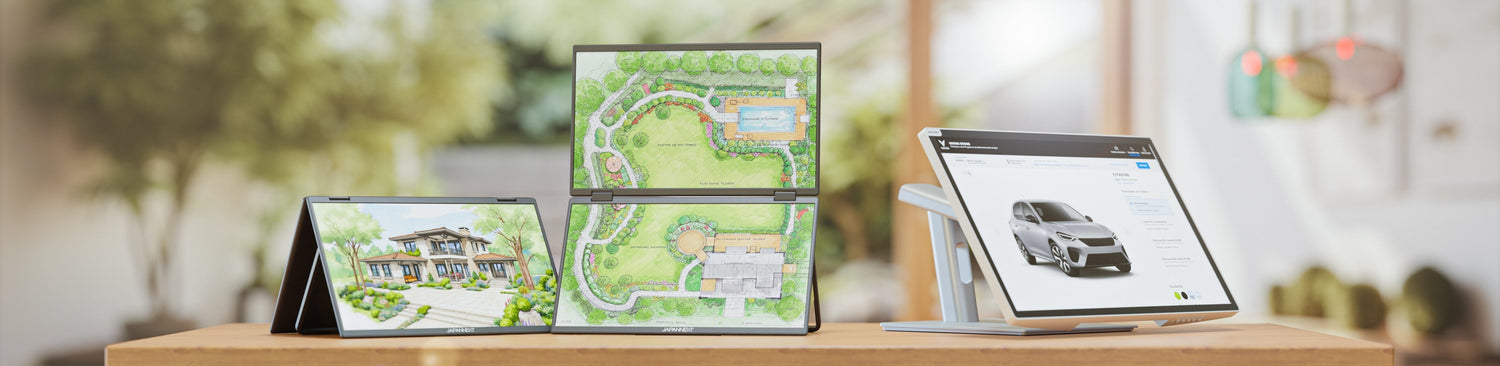
Just four product listings are enough to illustrate the range of specifications covered by these terms. The 37.5-inch Curved IPS UWQHD+ Monitor lists height adjustment, tilt, and 30-degree left-right pivot—all three movements on a single product listing. The 21.5-inch Desktop Touchscreen Monitor features an ergonomic articulated stand with a low tilt angle suited for touchscreen use. The 34-inch White Curved IPS UWQHD Monitor lists height adjustment. The 28-inch White IPS 4K UHD Office PC Monitor specifies an adjustable tilt range of -5 to +15 degrees.
These four examples get to the heart of the matter: the adjustment capabilities are listed for each product on its product page and cannot be deduced from the screen size or resolution.
The VESA standard: a fallback option when the stand isn’t enough
When the original stand does not offer the desired movement, it can be replaced. This is the purpose of the mounting standard published by VESA under the name Flat Display Mounting Interface, abbreviated as FDMI.
In practical terms, this consists of four threaded holes arranged in a square or rectangle on the back of the panel, with the center-to-center distance specified in millimeters. The most common pattern on a desktop monitor is 100 x 100, listed exactly as such in product specifications, such as those for the 27-inch IPS 4K UHD Desktop Monitor. Mounts for large-format monitors, on the other hand, support wider patterns.
This mounting system offers three key advantages. It allows the monitor to be mounted on an articulating arm, which provides height, depth, and orientation adjustment all in one unit. It frees up desk space with a wall mount. Finally, it enables rotation to portrait mode when the original stand does not support it, since the mount—not the monitor—handles the movement.
Two factors must be verified before purchasing a mount: the mount’s specifications and the monitor’s specifications must match, and the maximum load specified by the mount must cover the weight of the panel without its stand. Both are listed on their respective product specifications, and an error in the second will result in a sagging mount.
The size of a desktop monitor: a separate consideration
Screen diagonal remains a factor, but it should be determined based on the available viewing distance and the depth of the desk, not in absolute terms. A wide screen placed too close forces you to scan the screen with your eyes, while a modestly sized screen positioned correctly is easy to read.
This topic is covered in detail, with supporting data, in our article on choosing the right screen size, which compares common screen diagonals and their correspondence with resolution. This article focuses on the settings you adjust once you’ve chosen your monitor.
Screen Resolution and Definition
Screen definition comes into play in the settings through a practical detail: it determines the fineness of the characters, and thus the distance at which text remains legible—and consequently, the depth at which the screen should be placed on the desk. It refers to the number of pixels displayed, both in width and height; when expressed as a ratio of the diagonal, it indicates the display density. Three resolutions cover the vast majority of office computers.
Full HD (1920 x 1080 pixels)
The most common resolution. It displays a document and a web browser side by side in a readable manner and is sufficient for everyday tasks such as word processing, email, and web browsing. The 23.8-inch Full HD 75 Hz IPS Office PC Monitor is an example of this.
Quad HD (2560 x 1440 pixels)
It provides 78% more pixels than Full HD on the same screen area, resulting in sharper text and more content displayed without reducing text size. This is the resolution of the 27-inch IPS WQHD Office PC Monitor.
Ultra HD, 4K (3840 x 2160 pixels)
Four times the number of pixels of Full HD. The resulting pixel density makes text exceptionally sharp, though this requires the operating system to scale the interface to ensure it remains readable. The 28-inch IPS 4K UHD Office PC Monitor exemplifies this category, while the 31.5-inch IPS 4K UHD Office PC Monitor offers the same resolution across a larger surface area—and therefore with a lower pixel density.
Panel Technology, Refresh Rate, and Response Time
The panel technology extends the issue of viewing angle: a desktop monitor is rarely viewed directly from the center, and it’s the panel technology that determines how the image appears when the viewer’s perspective shifts. In office use, these characteristics aren’t prioritized in the same way as they are in gaming. The functioning of each technology is detailed in our article on IPS, VA, and TN panels.
IPS Panels
Wide viewing angles and stable colors when your line of sight shifts from the center. On a workstation, this stability allows you to read the top and edges of the screen without any change in image quality, and to share the screen with someone sitting next to you. This is the technology best suited for office work.
VA Panels
Higher contrast and deeper blacks than IPS, with narrower viewing angles. This trade-off is acceptable for an individual workstation where the user is facing the screen directly, particularly for dark documents or video content.
TN Panels
Fast response time, but with inferior viewing angles and color accuracy. This profile is better suited for fast-paced gaming than for office work, where the screen is often viewed from an angle.
Refresh Rate
This indicates how many times per second the panel refreshes the image, measured in hertz. A 60 Hz refresh rate is sufficient for standard office use. Higher refresh rates, such as 100 or 120 Hz, are most noticeable when scrolling through long documents and moving the cursor across a large area, as seen on the 27-inch Full HD IPS 100 Hz USB-C Desktop Monitor.
Response Time and Other Factors
Response time measures how quickly a pixel changes color, in milliseconds. For office use, the response times of current displays have no impact on day-to-day work. Synchronization technologies like FreeSync and G-Sync, which align the screen’s refresh rate with that of the graphics card, are designed for video games and offer no benefit for an office computer. As for adjusting the amount of blue in the image, this is covered in a dedicated article on low blue light mode.