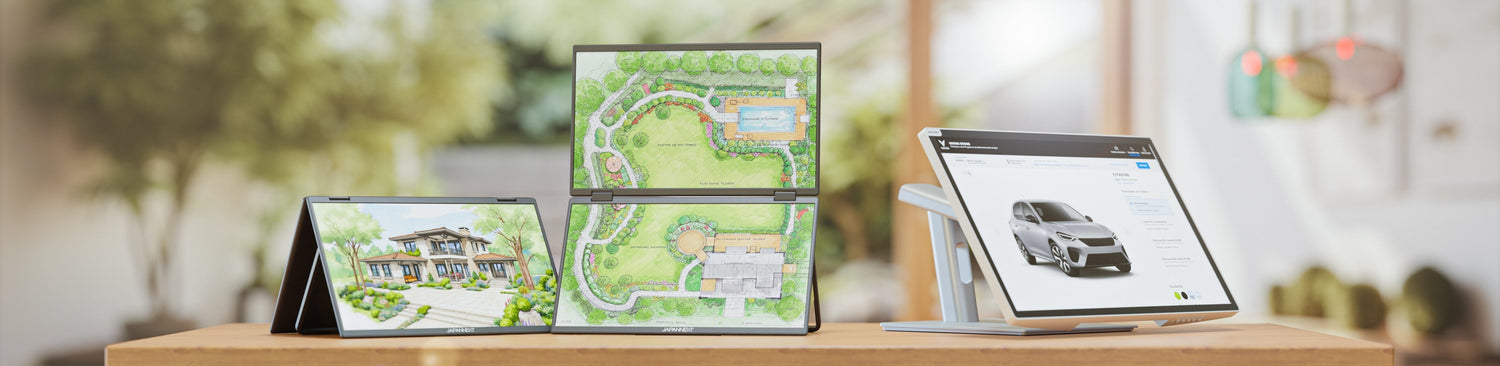
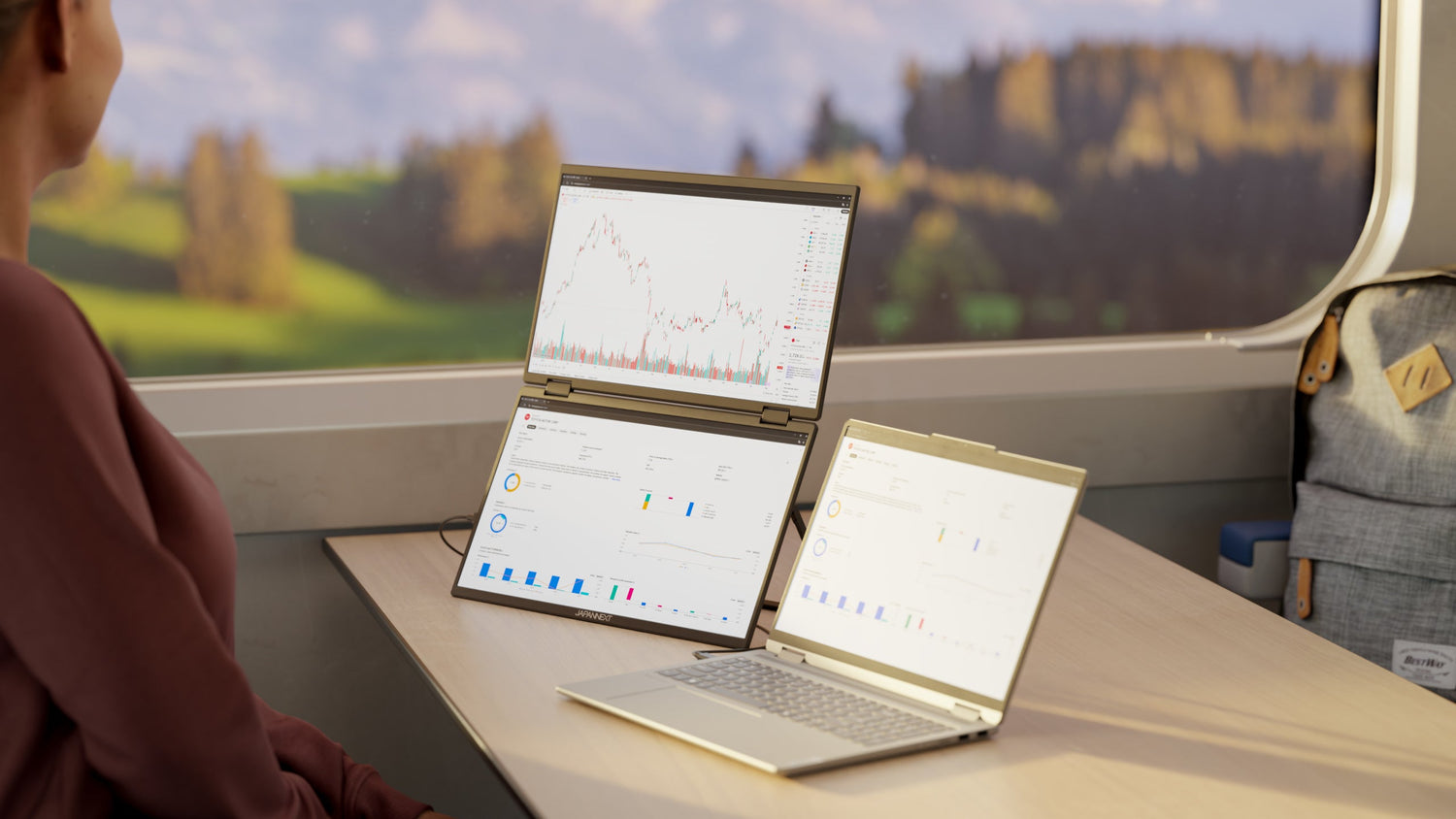
On a mobile monitor, touch doesn't replace the mouse. It's used for pointing, annotating, and presenting. This distinction isn't just about comfort; it determines whether the feature will be used daily or forgotten after a week.
The 15.6-inch Touchscreen Mobile Monitor in the JAPANNEXT catalog recognizes 10-point touch, meaning ten simultaneous contacts. This capability allows for multi-finger gestures like zooming, rotating, and panning, which are precisely the gestures used for annotation and document manipulation. It doesn't aid in text input or precise pointing.
In other words: a portable touch screen is justified by what you show and what you annotate, not by what you produce.
Why touch doesn't replace the mouse on a workstation
The reason is physical, and it lies in the position of an auxiliary screen. A portable monitor is placed to the side of the computer, or set back behind the keyboard. In both cases, it's outside the area where your hands rest.
Reaching this screen requires lifting and extending an arm, then bringing it back to type. The mouse or trackpad, however, remain within reach. For repeated daily tasks, the touch gesture is more strenuous, regardless of the screen panel's quality.
This is why comparing it to a tablet is misleading: on a tablet, the screen is also the device you hold, so the interface is where your hands already are. On a dual-screen workstation, this is not the case.
Annotating a document with multiple fingers
The primary use that justifies this feature is annotation. Reviewing a contract, correcting a mockup, pointing to a line in a spreadsheet: these are intermittent, not continuous, gestures, and they are best done directly on the document rather than via a cursor.
10-point touch recognition makes perfect sense here. It allows you to zoom with two fingers to read small print, rotate a plan or an image, and pan the view without using scroll bars. These manipulations are faster by hand than with a mouse.
The screen's matte finish also plays a role, as annotation is often done leaning over the screen, a position where a glossy coating would reflect ceiling lights.
Three gestures make up the core of this use, and all three require multiple simultaneous points of contact.
- Two-finger zoom: enlarge a clause, a dimension on a plan, a value in a table, without leaving the overall view or searching for a display setting.
- Rotation: reorient a plan, a photo, or a document received in the wrong orientation, a common gesture for attachments and scanned documents.
- Pan the view: slide an enlarged document to browse its areas, more direct than scroll bars when working zoomed in.
These three gestures share a common characteristic: they are used to examine existing content, not to produce new content. This is the exact boundary between what touch brings and what it doesn't.
The downside: a screen that needs cleaning
A screen manipulated by hand gets dirty, and a matte treatment retains marks more than a smooth surface. This is the accepted trade-off of the function, with no impact on the display but an impact on maintenance.
The rule is the same for any screen: use a dry or slightly damp microfiber cloth with water; never use alcohol- or ammonia-based products, which can damage surface treatments. A cleaning at the end of the day is sufficient for occasional annotation use.
Presenting to a counterpart
The second use is one-on-one presentation, a frequent situation when traveling: a client meeting, a review with a partner, a demonstration at a trade show.
In this setup, the screen is turned towards someone else. The keyboard and mouse remain on the user's side, thus inaccessible to the interlocutor, and rotating the entire setup for each interaction quickly becomes cumbersome. Touch solves this problem: the person opposite can point, scroll, and zoom in on whatever they want to look at.
The 178-degree viewing angles of the IPS panel are as important here as the touch function, as the image is viewed at an angle by at least one of the two people.
Wired, and nothing else
A common expectation among buyers is a wireless, Bluetooth-enabled portable touch screen. It must be stated clearly that this is not what this type of product does.
The connection is wired, via USB-C or Mini HDMI. There are two reasons for this. Firstly, the video signal requires a bandwidth that a Bluetooth connection cannot support. Secondly, the screen draws its power from the same cable: wirelessly, it would require a battery and a charging method, which changes the nature of the device.
Touch follows the same logic: contact information is sent back to the computer via the cable that carries the image. A Mini HDMI connection alone transmits video, but a USB connection is then necessary for touch to be recognized.
Touch or non-touch, the same screen
The most useful comparison is between two models from the same catalog, identical except for the touch function.
The 15.6-inch IPS Full HD Mobile Monitor, reference JN-MD-i156F-LE, and the 15.6-inch IPS Full HD Touch Mobile Monitor, reference JN-MD-i156F-T-LE, share the same 1920 x 1080 IPS panel, the same HDR10, the same 178-degree viewing angles, the same USB-C and Mini HDMI connectivity, the same 2 x 2 W speakers, the same matte screen, the same weight of 1.5 kg, and the same cover.
The only difference is the 10-point touch layer. The decision therefore hinges on a single criterion: are the annotation and presentation uses described above part of your daily routine, yes or no. If the answer is no, the non-touch version offers exactly the same screen.
JAPANNEXT touchscreen mobile monitors
- 15.6-inch IPS Full HD Touchscreen Light Mobile Monitor, reference JN-MD-i156F-T-LE: IPS panel, Full HD 1920 x 1080, 10-point touch, HDR10, 178-degree viewing angles, USB-C for video and power, Mini HDMI input, 2 x 2 W speakers, matte screen, 1.5 kg, cover included.
- 15.6-inch IPS Full HD Touchscreen Mobile Monitor, reference JN-MD-i156FHDR-T: IPS panel in 1920 x 1080 with multi-touch.
The touch version is part of the mobile monitors collection, which covers 13.3 to 23.8 inches in single or dual panels. For a fixed workstation, touch is also available on desktop diagonal sizes, grouped in the touchscreen monitors collection.
To go further: panel, connection, and maintenance
- Mobile monitor connectivity: what each type of port carries, USB-C and HDMI, and why touch depends on the chosen cable.
- Understanding different monitor panels: what distinguishes an IPS panel from other technologies, and the value of advertised viewing angles.
- Choosing your mobile monitor well: size, definition, panel, and connectivity, for the general framing of the choice.
FAQ: Mobile touch screen
What is a mobile touch screen used for?
To annotate documents directly with your finger and to present content to an interlocutor seated opposite, who can then manipulate the display without accessing the keyboard. These are occasional, gestural uses, different from common typing and pointing.
Does a mobile touch screen work wirelessly?
No. The connection is wired, via USB-C or Mini HDMI. The video signal requires a bandwidth incompatible with a Bluetooth connection, and the screen draws its power from the same cable, due to the lack of an integrated battery.
Does touch work with a single USB-C cable?
Yes, USB-C carries the image, power, and contact information over a single connection. When using Mini HDMI, which only carries video, a USB connection is still necessary for touch to be recognized.
What difference does 10-point touch make?
The panel recognizes ten simultaneous contacts, allowing for multi-finger gestures: zoom, rotation, panning. These gestures make annotation and document manipulation faster by hand than with a mouse.
Do you need a touch screen for mobile work?
Not in the general case: for office work and writing, the non-touch version of the same screen is sufficient and offers identical features. Touch is justified if document annotation or face-to-face presentations are part of your daily routine.